> ## Documentation Index
> Fetch the complete documentation index at: https://docs.codemod.com/llms.txt
> Use this file to discover all available pages before exploring further.
# GitHub Integration
export const NeedHelpFooter = ({provider, troubleshootingText = "troubleshooting steps"}) => {
return
Need help? If you encounter any issues setting up the {provider} integration, please contact our support team or visit our documentation for {troubleshootingText}.
;
};
export const ManagingIntegration = ({provider, settingsPath = "Settings → Integrations", actionText = "Configure or Disconnect"}) => {
return <>
Managing the Integration
To disconnect or modify the {provider} integration:
- Go to Codemod {settingsPath}
- Find your {provider} integration and click {actionText}
;
};
Connect Codemod to your GitHub repositories to enable automated code transformations across your codebase.
## Why integrate GitHub?
Integrating Codemod with GitHub allows you to apply codemods directly to your repositories and create pull requests with automated code changes.
## Set up the integration
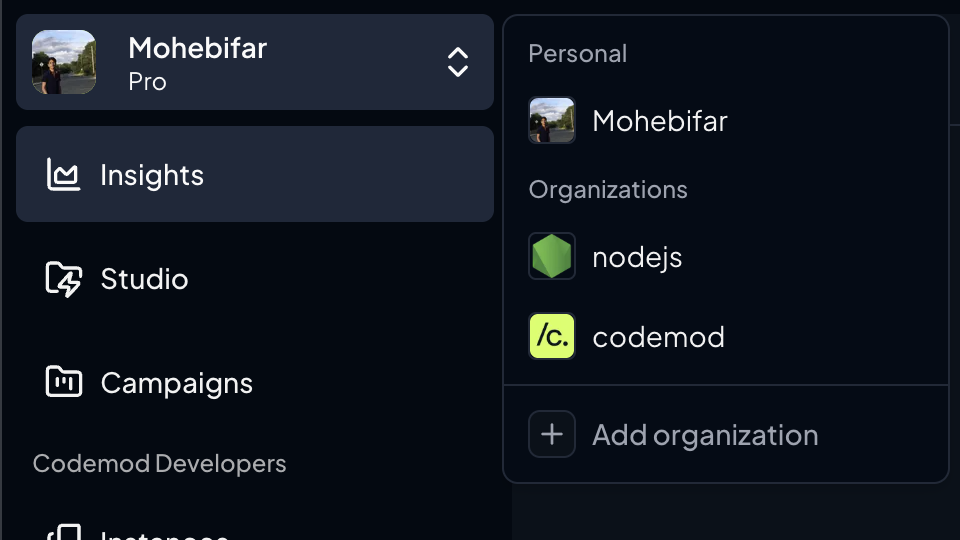
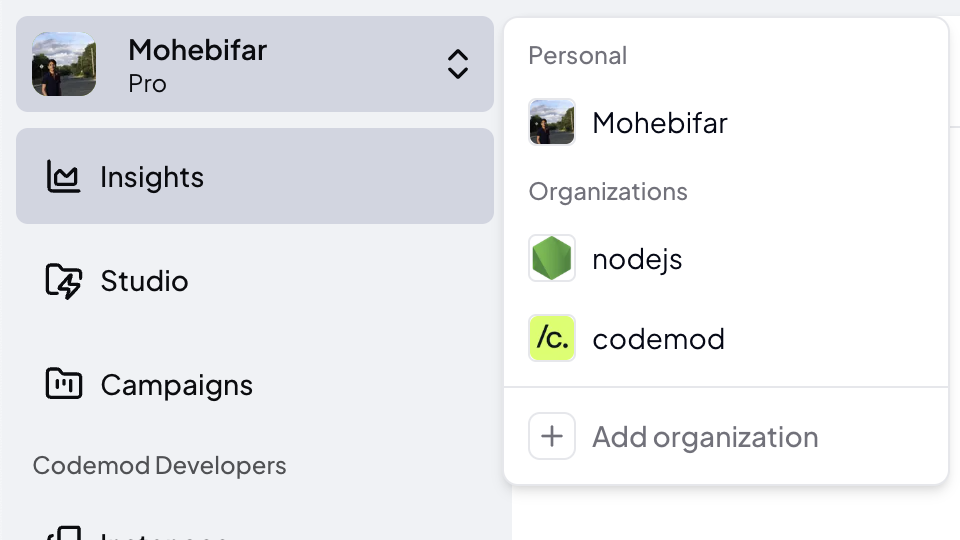
Sign in to [Codemod](https://app.codemod.com). Click on team switcher and click on "Add Organization"
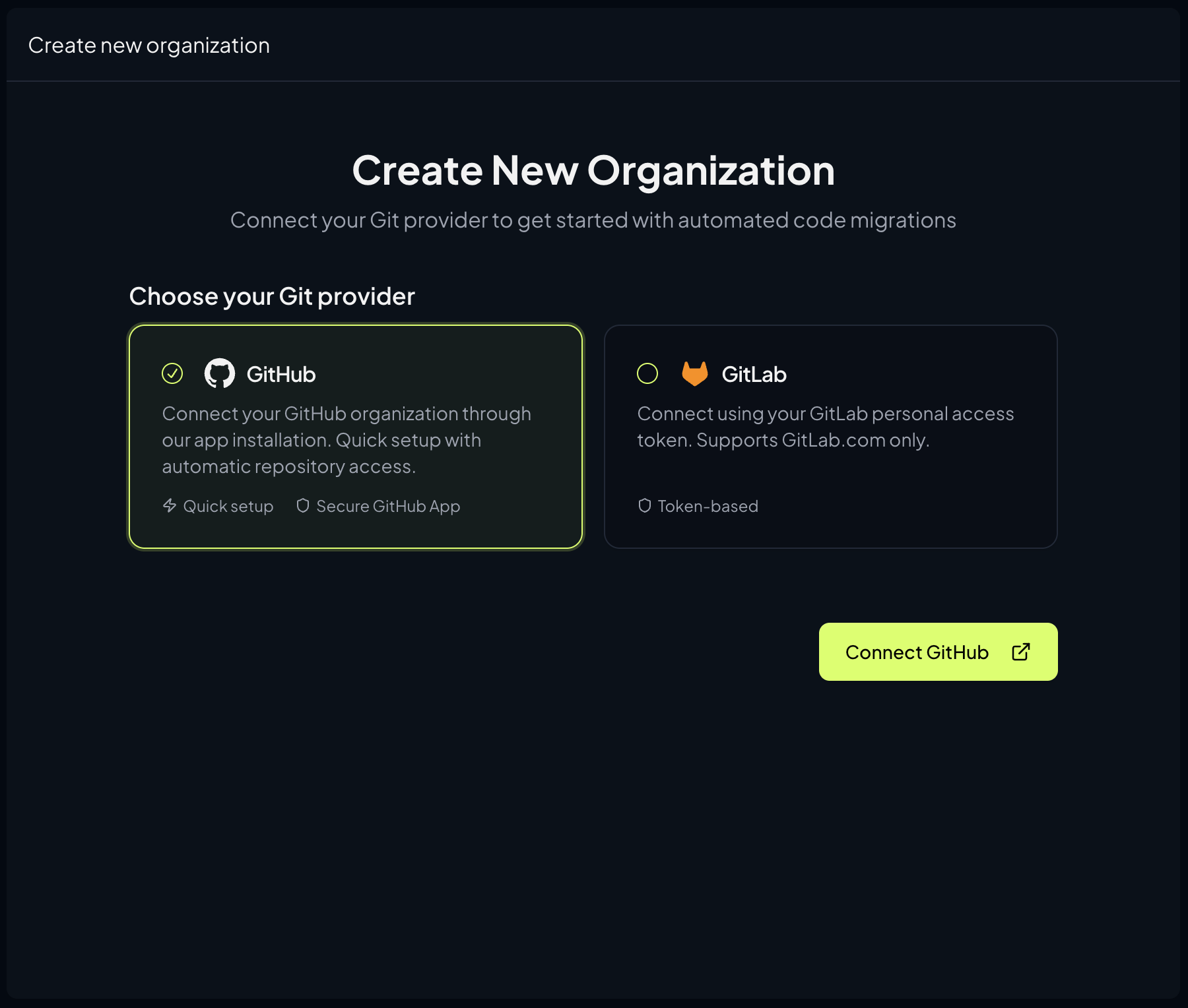
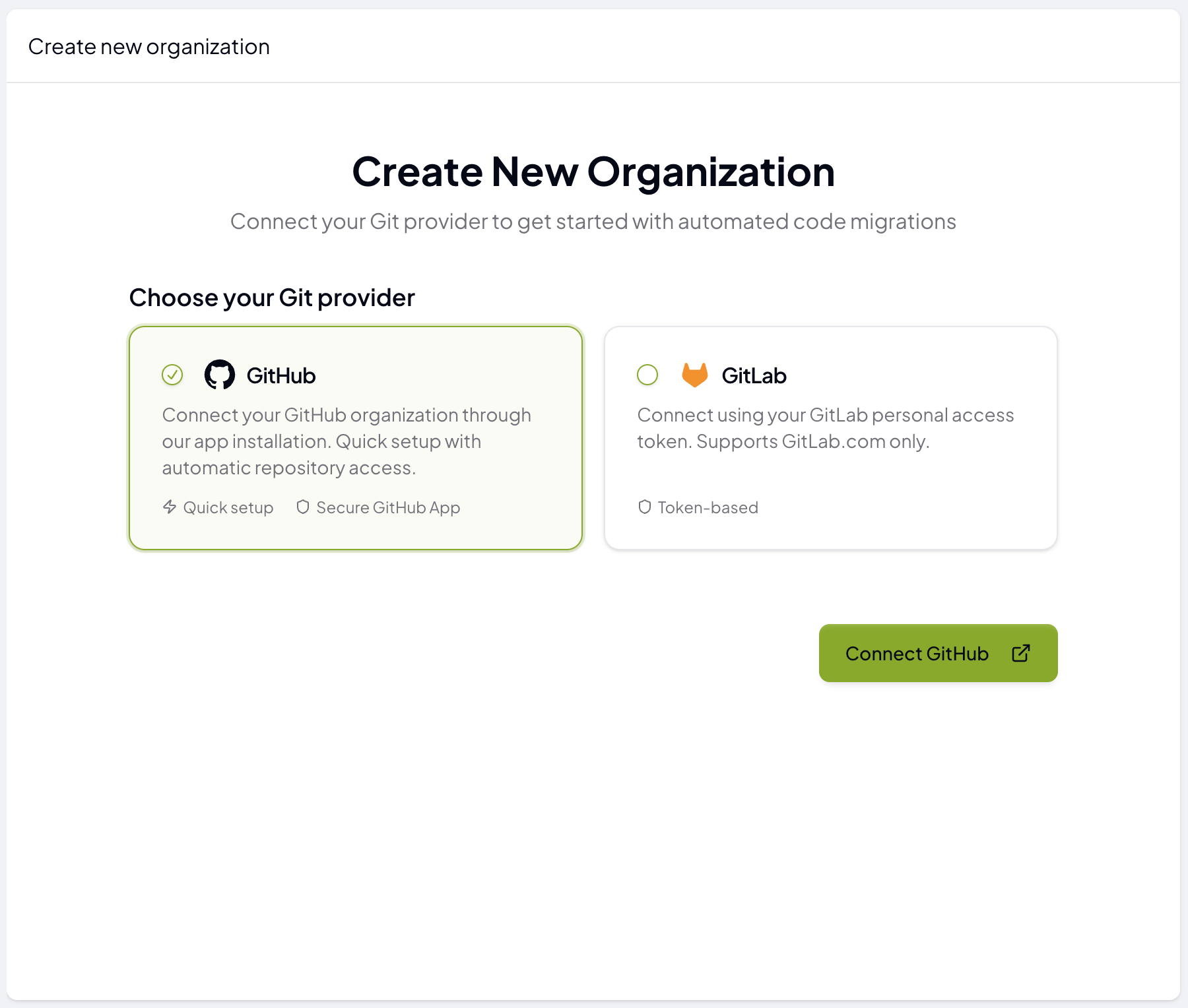
 Click the **"Connect GitHub"** button to begin the integration process.
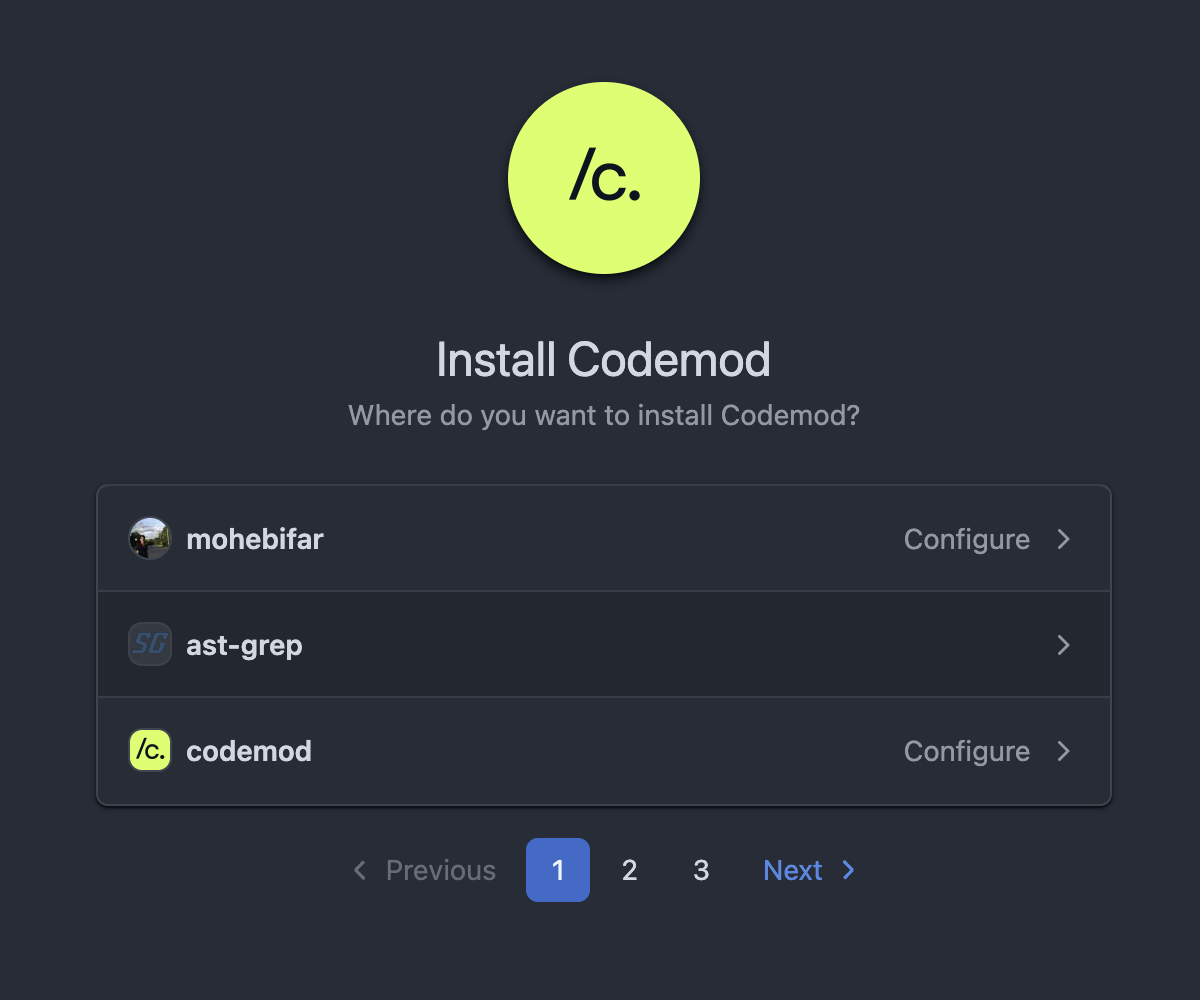
 You'll be redirected to GitHub where you can:
1. Select the **GitHub account** (personal or organization) where you want to install the Codemod app
2. Choose which **repositories** to grant access to (all repositories or select specific ones)
3. Review the permissions requested by the app
After approving the installation on GitHub, you'll be redirected back to Codemod where you can confirm the integration is active.
You'll be redirected to GitHub where you can:
1. Select the **GitHub account** (personal or organization) where you want to install the Codemod app
2. Choose which **repositories** to grant access to (all repositories or select specific ones)
3. Review the permissions requested by the app
After approving the installation on GitHub, you'll be redirected back to Codemod where you can confirm the integration is active.
 ## Using the GitHub integration
Once connected, you can:
* Select connected repositories when running codemods
* Automatically create pull requests with your code transformations
* Configure which repositories to target for specific codemods
## Managing Permissions
You can modify repository access at any time:
1. Go to your GitHub account settings
2. Navigate to **Applications** → **Installed GitHub Apps**
3. Find **Codemod** and click **Configure**
4. Update repository access as needed
### Required permissions
Codemod requires the following GitHub permissions:
**Read** access to:
* Repository metadata
* Repository code
* Commit statuses
**Read and Write** access to:
* Code (to create branches and commits)
* Pull requests (to create and update PRs)
These permissions allow Codemod to read your code, create branches with transformations, and open pull requests for review.
### Managing team members
Add team members to your organization to collaborate on migrations and control access to Campaigns and Insights.
If your organization uses [SAML SSO](/platform/saml#user-provisioning-and-access-control), users are provisioned automatically on first login (JIT) and access is controlled through your IdP — you do not need to invite them manually. Use the steps below to manage roles for users who already exist, or to invite users when SSO is not in use.
Go to **Organization Settings** → **Members** in the Codemod app.
Click **Invite Members** and enter the email addresses of team members you want to add.
Assign one of the following roles to each team member:
* **Admin**: Full access to organization settings and features
* **Member**: Can create and manage Campaigns, view Insights
* **Viewer**: Read-only access to Campaigns and Insights
## Security considerations
* We recommend enabling branch protections on your main branches to ensure changes are reviewed before merging
* Codemod can only access repositories you explicitly grant during the installation process
* You can revoke access at any time through your GitHub settings
* All code transformations are submitted as pull requests for your review
***
## Using the GitHub integration
Once connected, you can:
* Select connected repositories when running codemods
* Automatically create pull requests with your code transformations
* Configure which repositories to target for specific codemods
## Managing Permissions
You can modify repository access at any time:
1. Go to your GitHub account settings
2. Navigate to **Applications** → **Installed GitHub Apps**
3. Find **Codemod** and click **Configure**
4. Update repository access as needed
### Required permissions
Codemod requires the following GitHub permissions:
**Read** access to:
* Repository metadata
* Repository code
* Commit statuses
**Read and Write** access to:
* Code (to create branches and commits)
* Pull requests (to create and update PRs)
These permissions allow Codemod to read your code, create branches with transformations, and open pull requests for review.
### Managing team members
Add team members to your organization to collaborate on migrations and control access to Campaigns and Insights.
If your organization uses [SAML SSO](/platform/saml#user-provisioning-and-access-control), users are provisioned automatically on first login (JIT) and access is controlled through your IdP — you do not need to invite them manually. Use the steps below to manage roles for users who already exist, or to invite users when SSO is not in use.
Go to **Organization Settings** → **Members** in the Codemod app.
Click **Invite Members** and enter the email addresses of team members you want to add.
Assign one of the following roles to each team member:
* **Admin**: Full access to organization settings and features
* **Member**: Can create and manage Campaigns, view Insights
* **Viewer**: Read-only access to Campaigns and Insights
## Security considerations
* We recommend enabling branch protections on your main branches to ensure changes are reviewed before merging
* Codemod can only access repositories you explicitly grant during the installation process
* You can revoke access at any time through your GitHub settings
* All code transformations are submitted as pull requests for your review
***