> ## Documentation Index
> Fetch the complete documentation index at: https://docs.codemod.com/llms.txt
> Use this file to discover all available pages before exploring further.
# SAML SSO Setup
> Set up SAML single sign-on (SSO) for your Codemod organization.
Use this guide to configure SAML login for your organization in Codemod. The usual flow is:
1. Connect your organization using GitHub or GitLab.
2. Add a SAML SSO provider in Codemod.
3. Configure your identity provider (Okta, Google Workspace, or another SAML IdP).
If you need to coordinate with a security or identity team, identify a point of contact early. The SP metadata URL and ACS URL are shown in the Configuration step and can be shared with your IdP administrator.
If you haven't connected your organization yet, follow the GitHub or GitLab integration guide first:
* [GitHub Integration](/platform/integrations/github)
* [GitLab Integration](/platform/integrations/gitlab)
## Steps
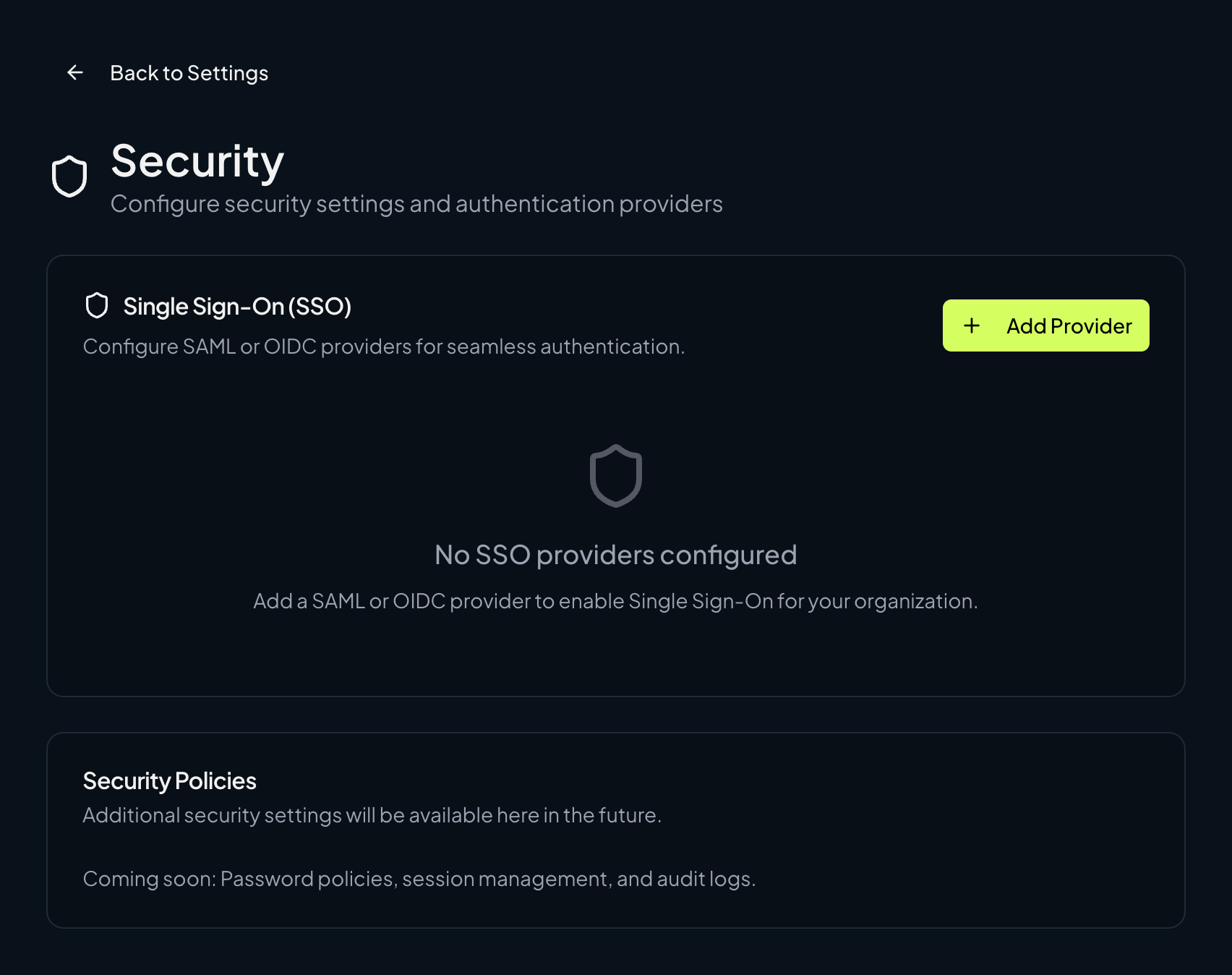
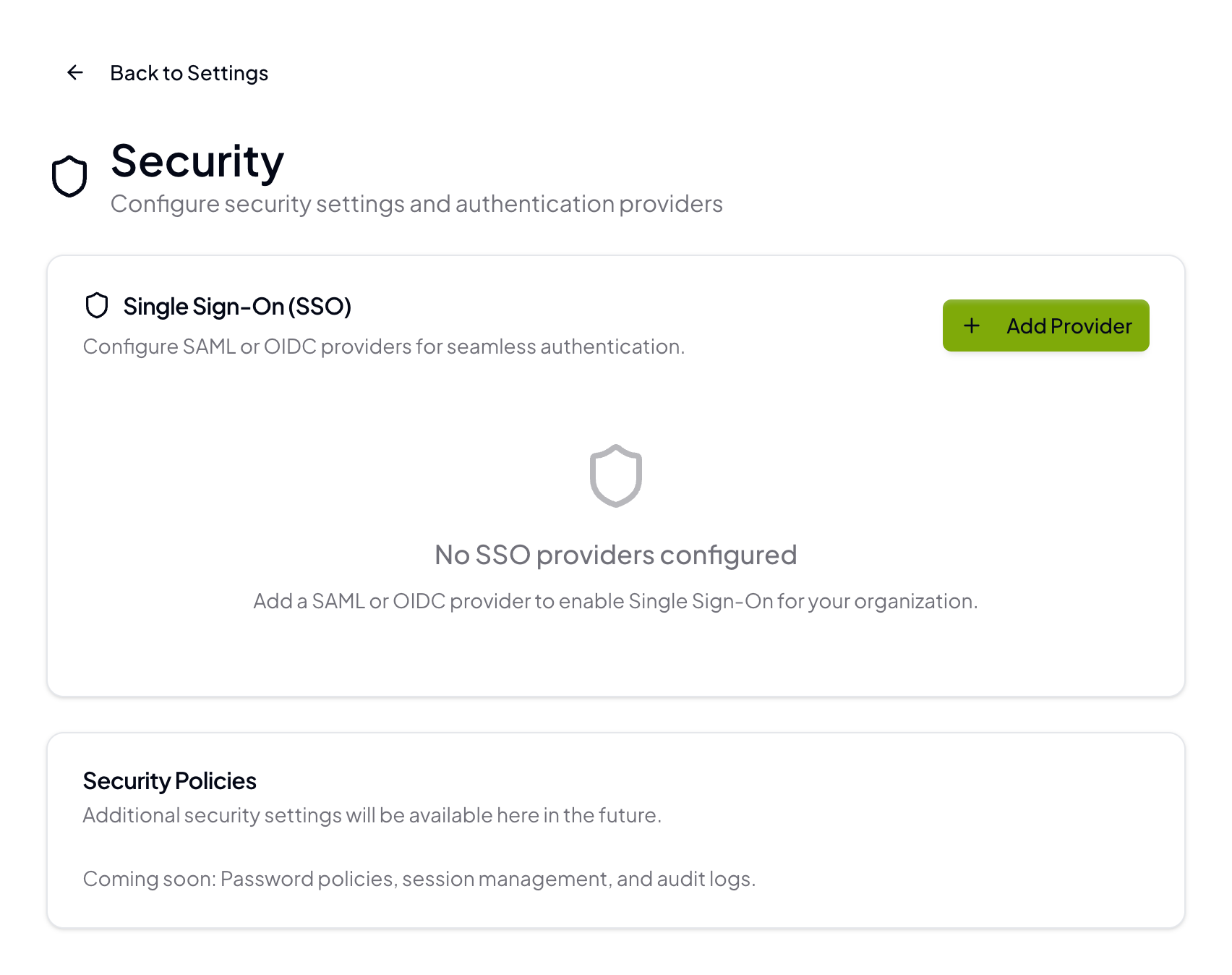
Go to **Organization Settings** → **Security** → **Single Sign-On (SSO)** and click **Add Provider**.
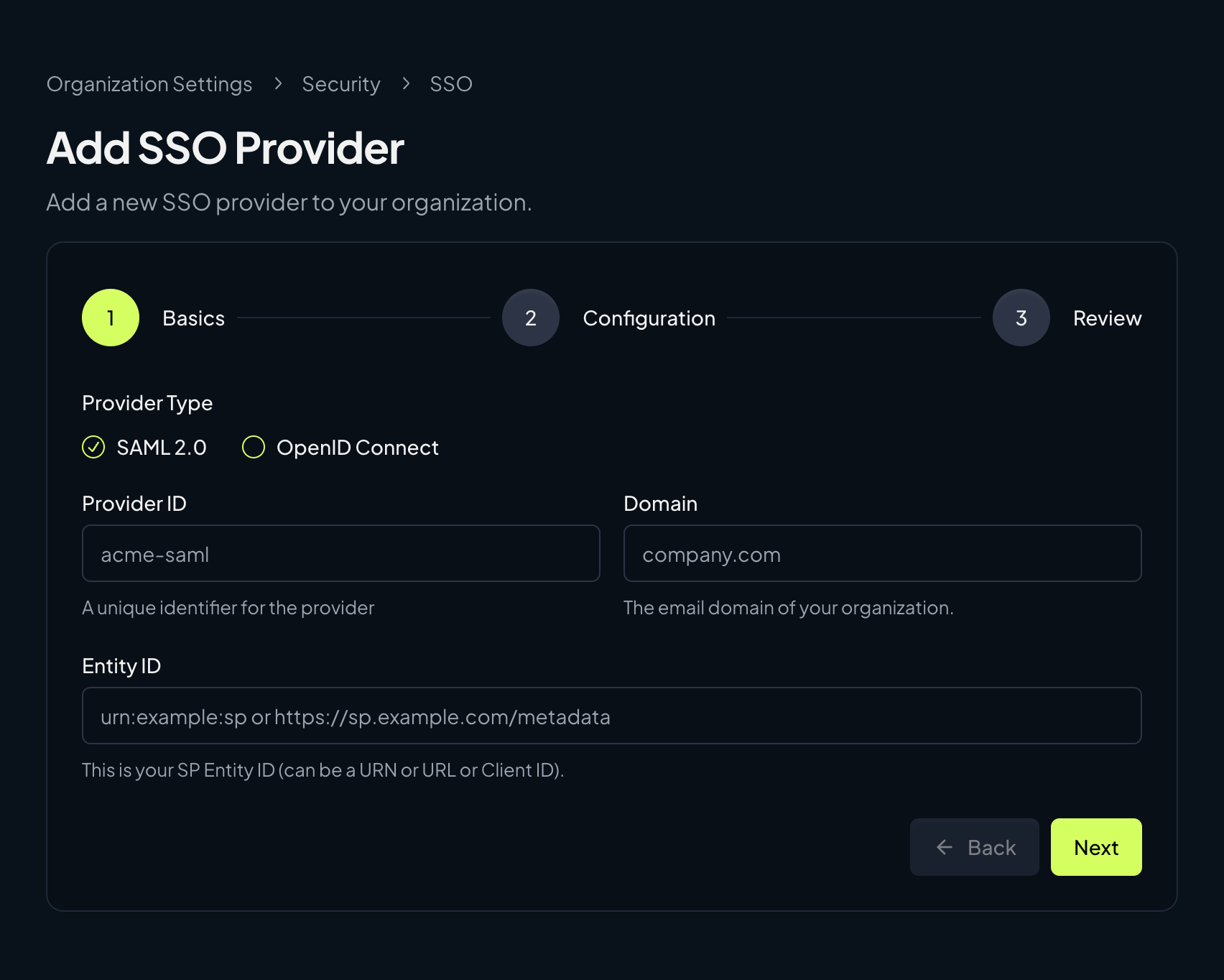
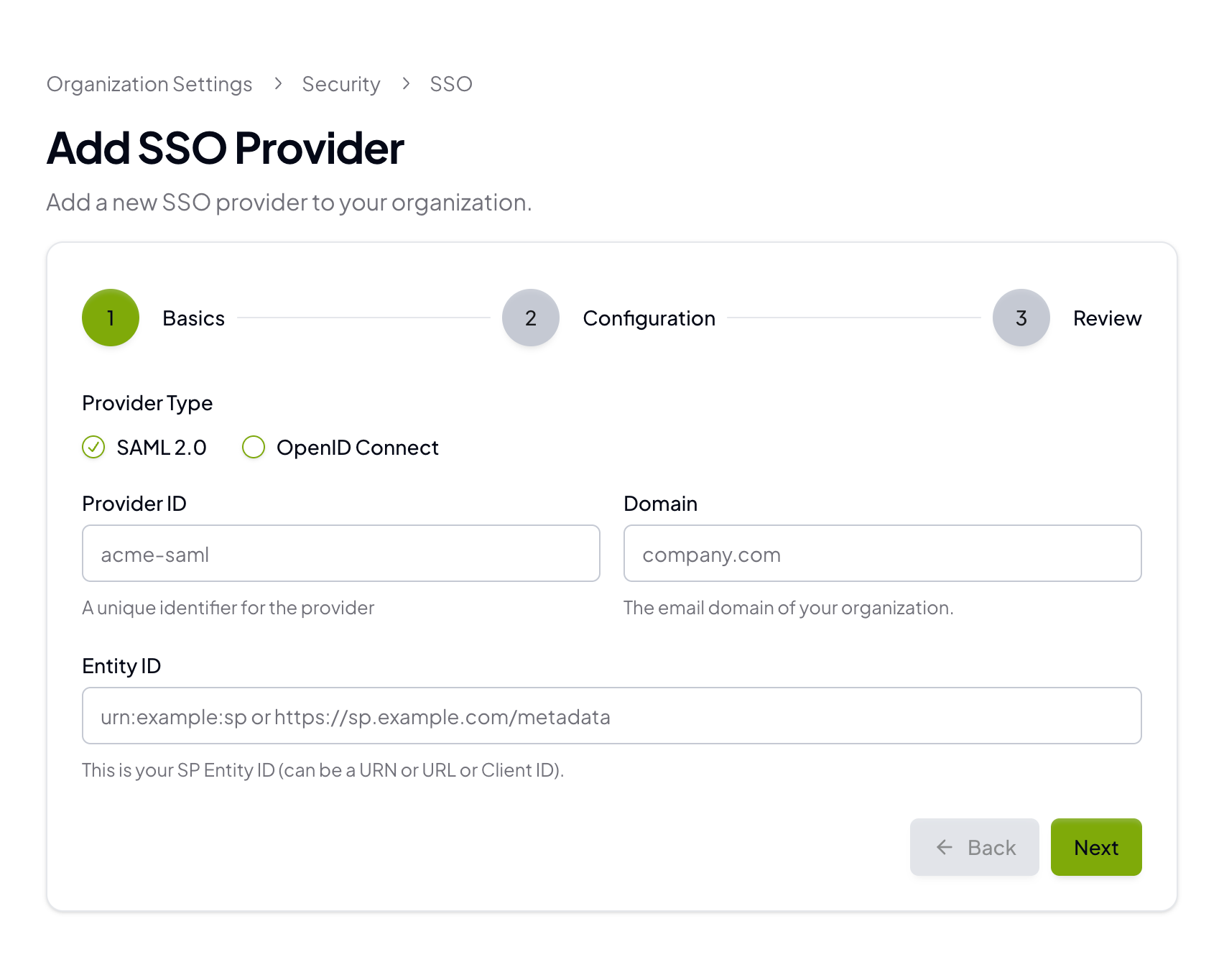
 Select **SAML 2.0**, then enter the **Provider ID**, **Domain**, and **Entity ID** for your SAML provider.
* **Provider ID**: A short, unique identifier (for example, `acme-saml`)
* **Domain**: Your email domain (for example, `company.com`)
* **Entity ID**: The SP Entity ID you will also configure in your IdP
Select **SAML 2.0**, then enter the **Provider ID**, **Domain**, and **Entity ID** for your SAML provider.
* **Provider ID**: A short, unique identifier (for example, `acme-saml`)
* **Domain**: Your email domain (for example, `company.com`)
* **Entity ID**: The SP Entity ID you will also configure in your IdP
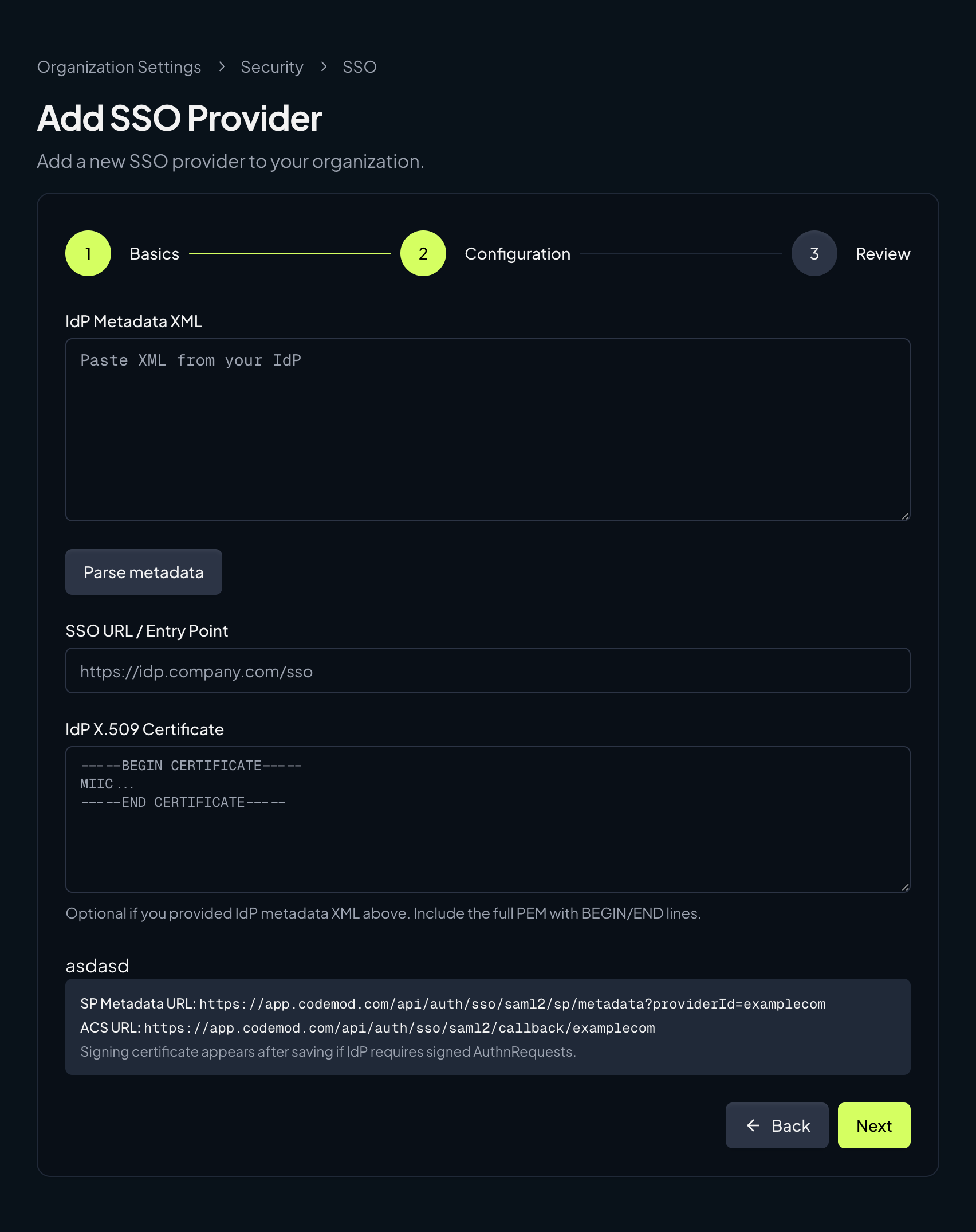
 Add the IdP details from your provider:
* **IdP Metadata XML** (recommended)
* **SSO URL / Entry Point**
* **IdP X.509 Certificate**
If your IdP provides metadata XML, paste it and click **Parse metadata** to auto-fill the SSO URL and certificate.
This step also shows your **SP metadata URL** and **ACS URL**. Use those values when configuring the Codemod app in your provider (Okta, Google Workspace, etc.).
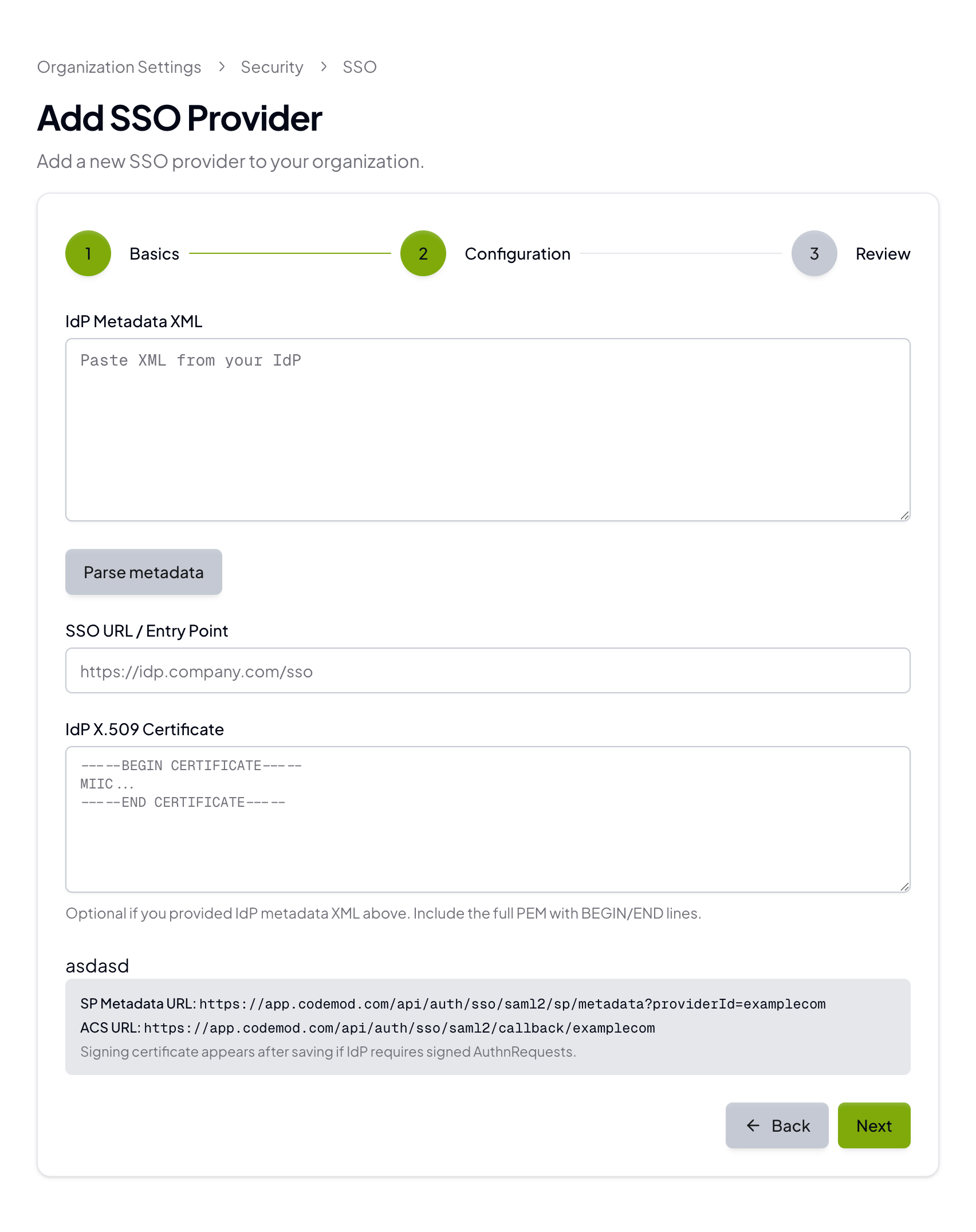
Add the IdP details from your provider:
* **IdP Metadata XML** (recommended)
* **SSO URL / Entry Point**
* **IdP X.509 Certificate**
If your IdP provides metadata XML, paste it and click **Parse metadata** to auto-fill the SSO URL and certificate.
This step also shows your **SP metadata URL** and **ACS URL**. Use those values when configuring the Codemod app in your provider (Okta, Google Workspace, etc.).
 Review the settings, then save the provider. Your organization will be ready for SSO login.
## Required SAML attributes
Codemod requires the following user attributes:
* `email`
* `givenName`
* `surname`
* `sub` (must be a unique identifier for each user; you can use an ID, login, or email)
Attribute names are case-sensitive. Make sure the assertion includes **all four** attributes exactly as written above.
## Configure your identity provider (IdP)
The Codemod configuration screen provides the **SP metadata URL** and **ACS URL**. Your IdP will also give you an **IdP metadata XML**, **SSO URL**, and **X.509 certificate**. You can paste the metadata XML to auto-fill the SSO URL and certificate.
If your IdP supports importing a Service Provider by URL, use the **SP metadata URL** from Codemod. If it doesn’t, configure the **ACS URL** and **Entity ID** manually.
Use this mapping when moving values between Codemod and your IdP:
| Codemod | Okta | Google Workspace |
| ------------------------- | --------------------------- | ---------------- |
| **ACS URL** | Single sign-on URL | ACS URL |
| **Entity ID** | Audience URI (SP Entity ID) | Entity ID |
| **IdP Metadata XML** | IdP metadata XML | IdP metadata XML |
| **SSO URL / Entry Point** | SSO URL | SSO URL |
| **IdP X.509 Certificate** | X.509 certificate | Certificate |
Below are provider-specific instructions for Okta and Google Workspace. If you are using another IdP, map the same values and attributes.
### Okta
1. In the Okta Admin Console, go to **Applications** → **Applications** and select your Codemod SAML app (or create a new **SAML 2.0** app).
2. In the app's **Sign On** tab, click **Edit** in the SAML settings.
3. Under **SAML Settings**, set:
* **Single sign on URL** → Codemod **ACS URL**
* **Audience URI (SP Entity ID)** → Codemod **Entity ID**
4. Save, then copy the IdP details back to Codemod:
* Use **View IdP metadata** (or equivalent) and paste the XML into **IdP Metadata XML** in Codemod.
* Alternatively, copy the **SSO URL** and **X.509 certificate** into the corresponding fields.
5. Under **Attribute Statements**, add these mappings:
* `email` → `user.email`
* `givenName` → `user.firstName`
* `surname` → `user.lastName`
* `sub` → `user.login` (or `user.id` / `user.email` if you prefer)
Example Okta attribute statements:
Review the settings, then save the provider. Your organization will be ready for SSO login.
## Required SAML attributes
Codemod requires the following user attributes:
* `email`
* `givenName`
* `surname`
* `sub` (must be a unique identifier for each user; you can use an ID, login, or email)
Attribute names are case-sensitive. Make sure the assertion includes **all four** attributes exactly as written above.
## Configure your identity provider (IdP)
The Codemod configuration screen provides the **SP metadata URL** and **ACS URL**. Your IdP will also give you an **IdP metadata XML**, **SSO URL**, and **X.509 certificate**. You can paste the metadata XML to auto-fill the SSO URL and certificate.
If your IdP supports importing a Service Provider by URL, use the **SP metadata URL** from Codemod. If it doesn’t, configure the **ACS URL** and **Entity ID** manually.
Use this mapping when moving values between Codemod and your IdP:
| Codemod | Okta | Google Workspace |
| ------------------------- | --------------------------- | ---------------- |
| **ACS URL** | Single sign-on URL | ACS URL |
| **Entity ID** | Audience URI (SP Entity ID) | Entity ID |
| **IdP Metadata XML** | IdP metadata XML | IdP metadata XML |
| **SSO URL / Entry Point** | SSO URL | SSO URL |
| **IdP X.509 Certificate** | X.509 certificate | Certificate |
Below are provider-specific instructions for Okta and Google Workspace. If you are using another IdP, map the same values and attributes.
### Okta
1. In the Okta Admin Console, go to **Applications** → **Applications** and select your Codemod SAML app (or create a new **SAML 2.0** app).
2. In the app's **Sign On** tab, click **Edit** in the SAML settings.
3. Under **SAML Settings**, set:
* **Single sign on URL** → Codemod **ACS URL**
* **Audience URI (SP Entity ID)** → Codemod **Entity ID**
4. Save, then copy the IdP details back to Codemod:
* Use **View IdP metadata** (or equivalent) and paste the XML into **IdP Metadata XML** in Codemod.
* Alternatively, copy the **SSO URL** and **X.509 certificate** into the corresponding fields.
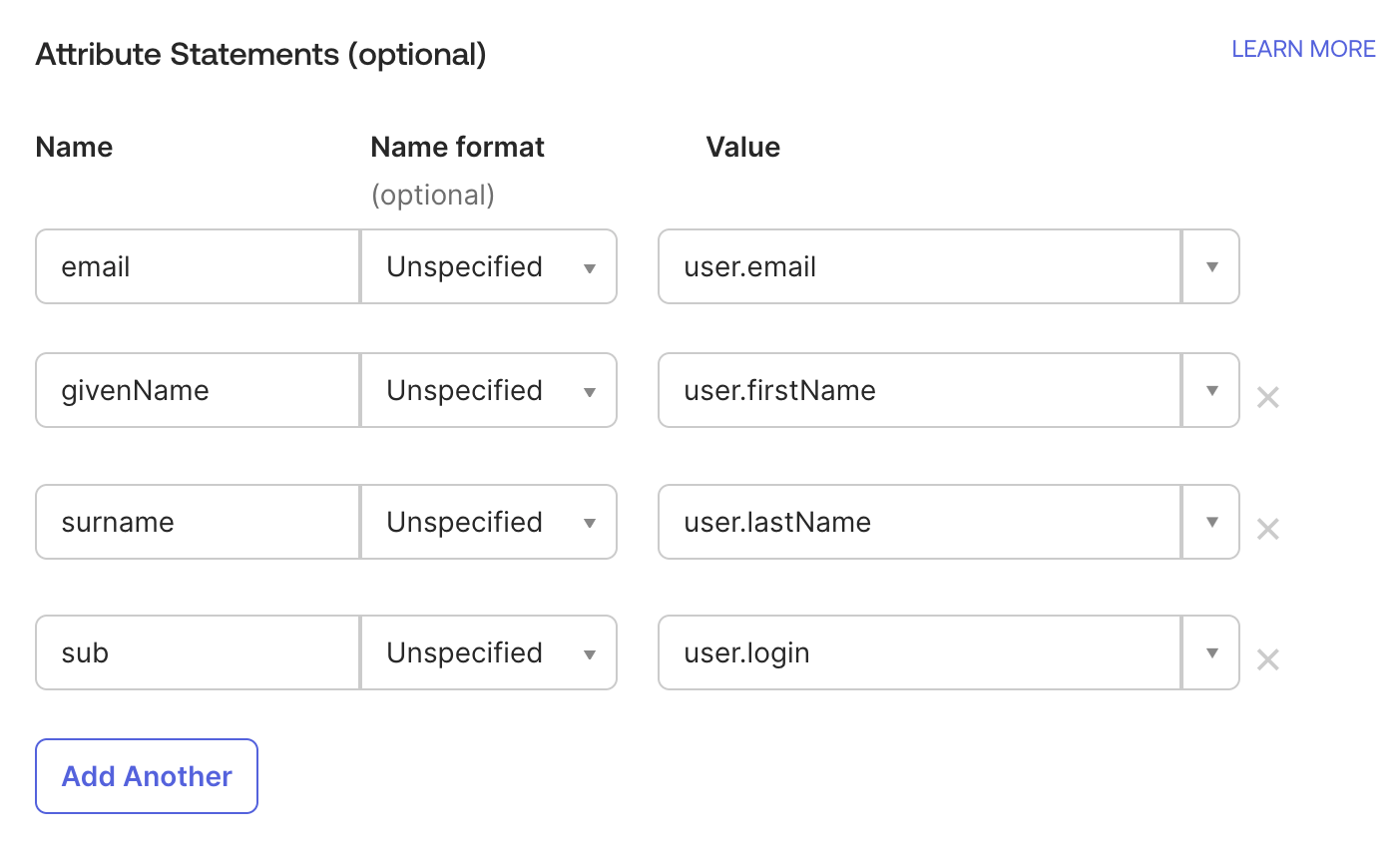
5. Under **Attribute Statements**, add these mappings:
* `email` → `user.email`
* `givenName` → `user.firstName`
* `surname` → `user.lastName`
* `sub` → `user.login` (or `user.id` / `user.email` if you prefer)
Example Okta attribute statements:
 ### Google Workspace (Google SAML)
1. In the Google Admin console, go to **Apps** → **Web and mobile apps** → **Add app** → **Add custom SAML app**.
2. On the **Google IdP information** step, copy the **SSO URL** and **certificate** (or download metadata if available) and paste them into Codemod:
* **SSO URL** → Codemod **SSO URL / Entry Point**
* **Certificate** → Codemod **IdP X.509 Certificate**
3. On the **Service provider details** step, set:
* **ACS URL** → Codemod **ACS URL**
* **Entity ID** → Codemod **Entity ID**
4. On the **Attribute mapping** step, add these mappings:
* `email` → **Basic Information > Primary Email**
* `givenName` → **Basic Information > First Name**
* `surname` → **Basic Information > Last Name**
* `sub` → **Basic Information > Primary Email** (or another unique user ID if you prefer)
After saving, make sure the SAML app is turned **On** for the correct users or organizational units.
## User provisioning and access control
Codemod uses **just-in-time (JIT) provisioning** by default. A user account is created automatically the first time someone signs in through your IdP — there is no separate user import or directory sync to configure.
Because of this, who can access Codemod is controlled by your IdP: only users (or groups) that your IdP administrator assigns to the Codemod SAML app can sign in. To grant or revoke access, update the app assignment in your IdP (for example, in Okta under the app's **Assignments** tab, or in Google Workspace by turning the app **On** for specific organizational units).
Once a user has signed in, an organization Admin can change their **role** (Admin, Member, or Viewer) from **Organization Settings** → **Members**. See [Managing team members](/platform/integrations/github#managing-team-members) for role definitions.
## Require SSO for all members
After SSO is configured, an organization Admin can enforce SSO-only access from **Organization Settings** → **Security** → **Single Sign-On (SSO)** by toggling **Require SSO for all members** on.
When enabled, members must authenticate through your SSO provider to access the organization. Members without an SSO-linked account will not be able to switch to this organization from the team switcher (top-left corner of the app), even if they previously connected GitHub or GitLab.
## Finalize
When setup is complete, let the Codemod team know. We will remove the initial non-SSO login method so the first user also signs in through SSO going forward.
### Google Workspace (Google SAML)
1. In the Google Admin console, go to **Apps** → **Web and mobile apps** → **Add app** → **Add custom SAML app**.
2. On the **Google IdP information** step, copy the **SSO URL** and **certificate** (or download metadata if available) and paste them into Codemod:
* **SSO URL** → Codemod **SSO URL / Entry Point**
* **Certificate** → Codemod **IdP X.509 Certificate**
3. On the **Service provider details** step, set:
* **ACS URL** → Codemod **ACS URL**
* **Entity ID** → Codemod **Entity ID**
4. On the **Attribute mapping** step, add these mappings:
* `email` → **Basic Information > Primary Email**
* `givenName` → **Basic Information > First Name**
* `surname` → **Basic Information > Last Name**
* `sub` → **Basic Information > Primary Email** (or another unique user ID if you prefer)
After saving, make sure the SAML app is turned **On** for the correct users or organizational units.
## User provisioning and access control
Codemod uses **just-in-time (JIT) provisioning** by default. A user account is created automatically the first time someone signs in through your IdP — there is no separate user import or directory sync to configure.
Because of this, who can access Codemod is controlled by your IdP: only users (or groups) that your IdP administrator assigns to the Codemod SAML app can sign in. To grant or revoke access, update the app assignment in your IdP (for example, in Okta under the app's **Assignments** tab, or in Google Workspace by turning the app **On** for specific organizational units).
Once a user has signed in, an organization Admin can change their **role** (Admin, Member, or Viewer) from **Organization Settings** → **Members**. See [Managing team members](/platform/integrations/github#managing-team-members) for role definitions.
## Require SSO for all members
After SSO is configured, an organization Admin can enforce SSO-only access from **Organization Settings** → **Security** → **Single Sign-On (SSO)** by toggling **Require SSO for all members** on.
When enabled, members must authenticate through your SSO provider to access the organization. Members without an SSO-linked account will not be able to switch to this organization from the team switcher (top-left corner of the app), even if they previously connected GitHub or GitLab.
## Finalize
When setup is complete, let the Codemod team know. We will remove the initial non-SSO login method so the first user also signs in through SSO going forward.