

How Insights Work
When running large-scale migrations across dozens of repositories and teams, you need visibility into what’s changed, what’s left, and who owns it. Codemod Insights gives you that visibility through three layers:- Dashboards group related insights around a migration, initiative, or team.
- Widgets visualize query results as timeseries charts, single numbers, or tables — so you can track migration progress, API adoption rates, or security posture over time.
- Queries run against your repositories using one of two engines — ast-grep or js-ast-grep — and return the data your widgets display.
Dashboards
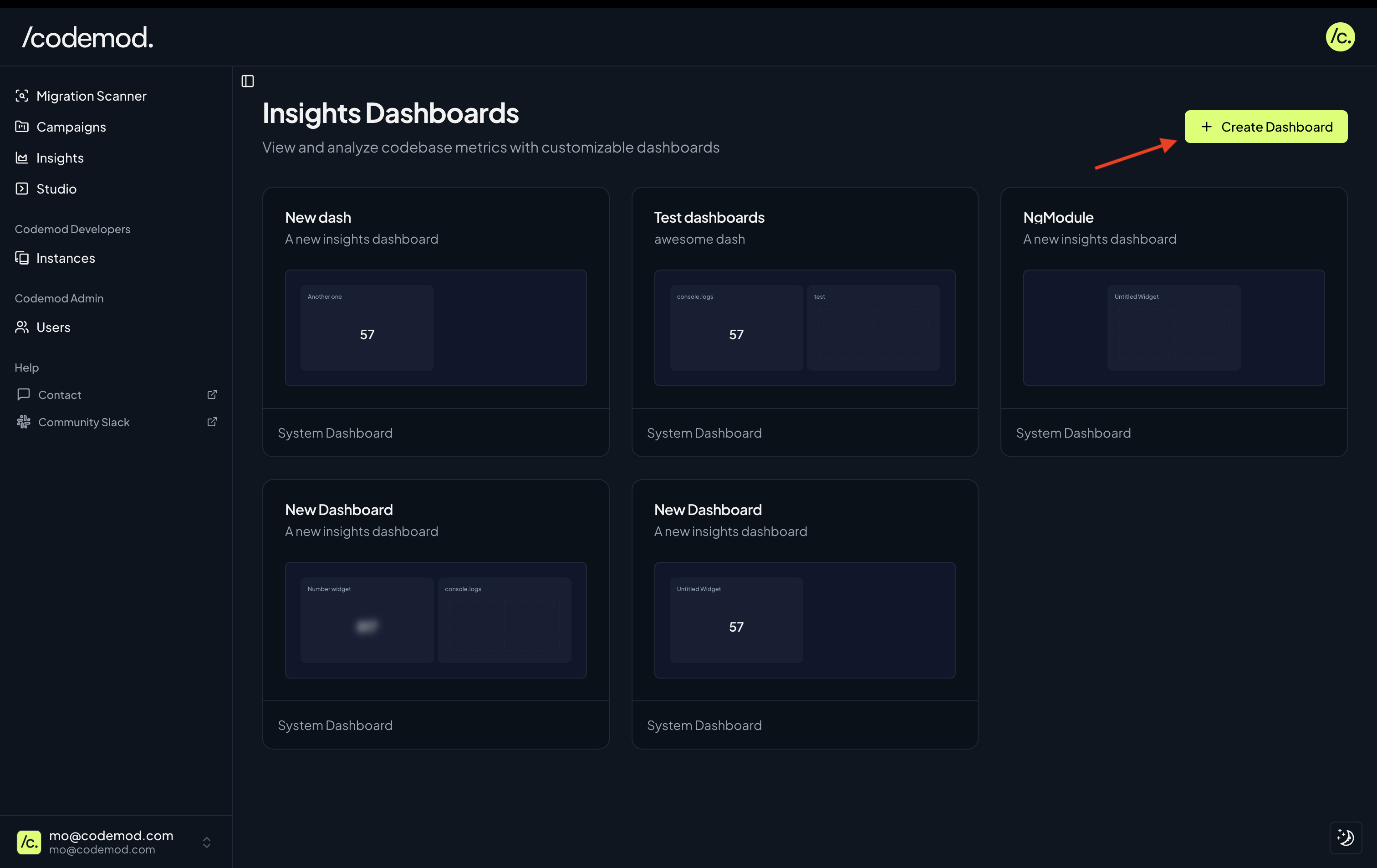
Dashboards are the top-level container for your insights. Use them to organize widgets by initiative — for example, ani18n migration dashboard that tracks old API usage, new API adoption, and files remaining across all affected repositories.
To create a new dashboard, go to Insights → Create Dashboard.
Widgets
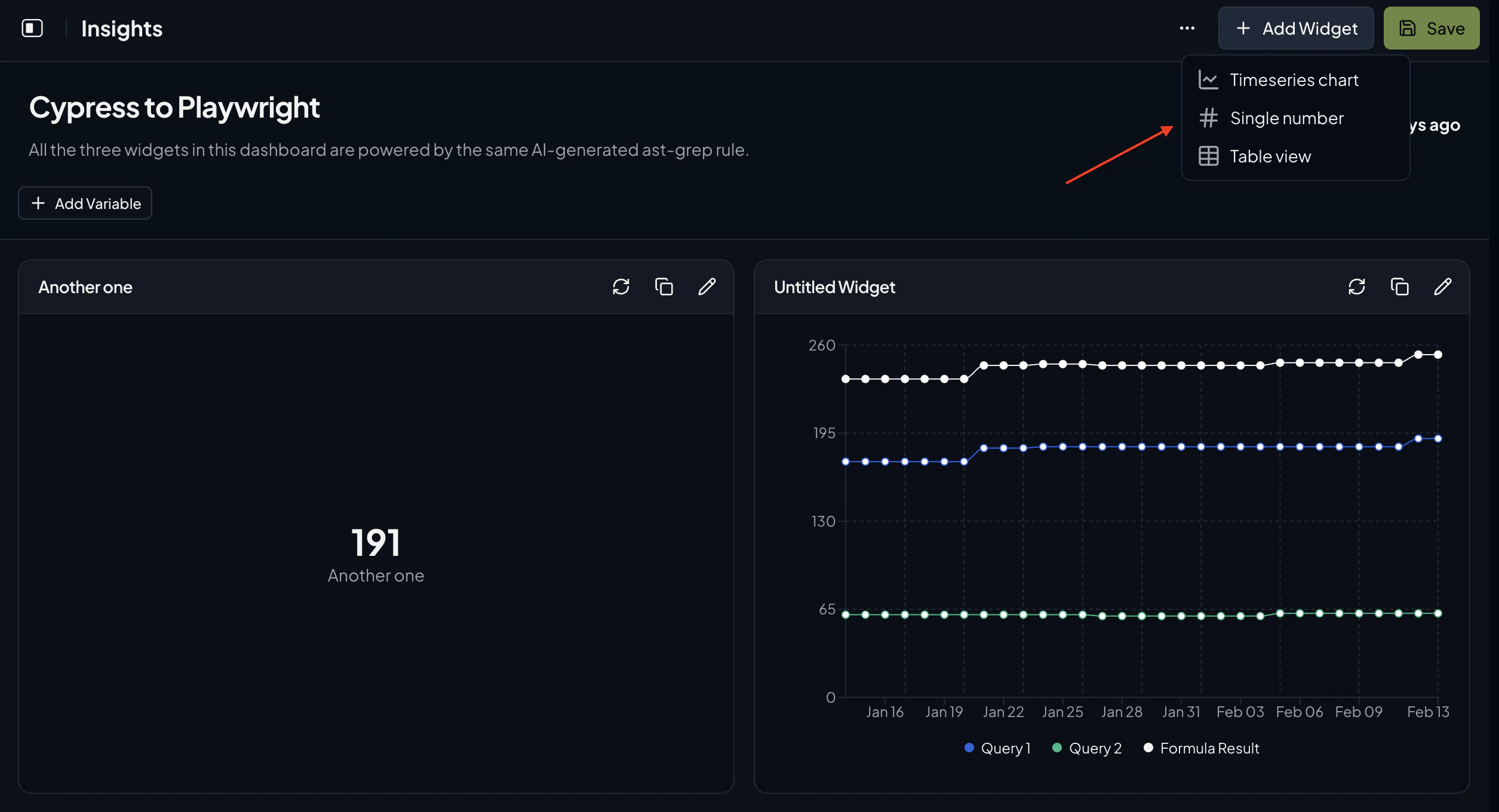
Widgets are the building blocks of a dashboard. Each widget runs one or more queries against your repositories and renders the results in one of three formats:- Timeseries chart — track how a metric changes over time (e.g., deprecated API calls trending down week over week).
- Single number — display a point-in-time value (e.g., total files still using the old pattern).
- Table view — show tabular data with sorting and row limits (e.g., remaining migration work broken down by codeowner).
- ast-grep — uses an ast-grep YAML rule to match code patterns across your repositories.
- js-ast-grep — uses JSSG for deeper static analysis, custom metrics, and dimensions like codeowners.

Formulas
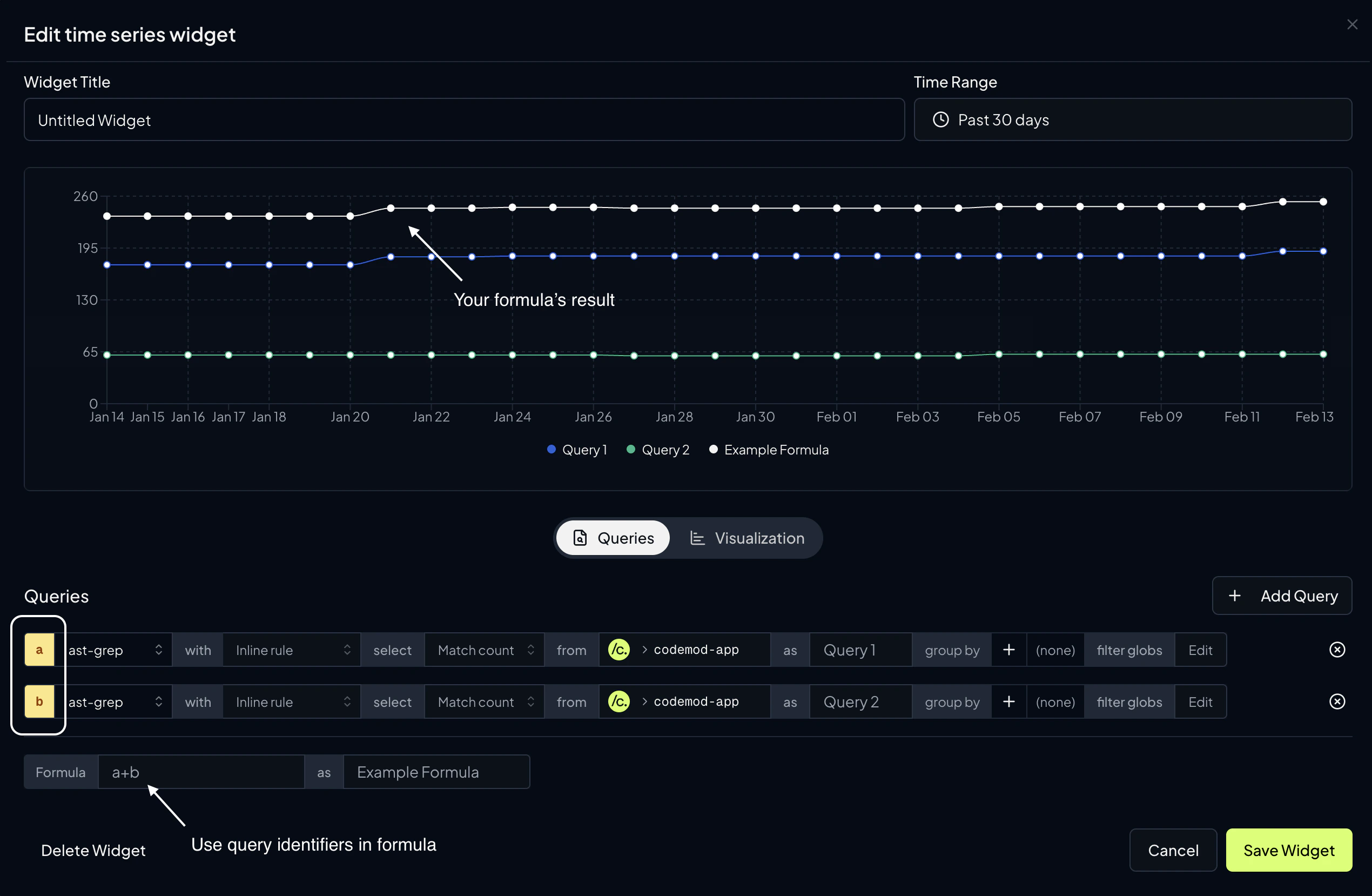
You can aggregate the results of multiple queries by specifying a formula. Queries are assigned alphabetical variable names (a, b, c, …) that you can reference in the formula expression.
You can also give the formula result a name using the formula alias field (e.g. Formula Result).
Visualization Settings
Each widget type has its own visualization options accessible from the Visualization tab in the widget editor:- Timeseries chart — choose between
Line,Bar, orAreachart types. Configure X and Y axis labels. - Single number — set a prefix (e.g.
$), suffix (e.g.%), and number format (e.g.0.0for one decimal place). - Table view — configure sort column, sort direction (ascending/descending), and row limit.
Time Range
Timeseries widgets include a time range selector that controls the analysis window. You can choose from:- Relative presets — Past week, Past 30 days, Past 4 weeks, Past 2 months, or Past 3 months
- Fixed range — Select a custom start and end date using a calendar picker
Queries
ast-grep Queries
ast-grep queries use inline YAML rules to match code patterns. You can generate ast-grep rules with the help of AI using Codemod Studio.| Configuration | Description |
|---|---|
| Rule | An ast-grep YAML rule defining the pattern to search for |
| Select | Match count (number of pattern occurrences) or File count (number of files containing the pattern) |
| Repository | One or more target repositories to analyze |
| Group by | Group results by repository or codeowner |
| File path filter | Include or exclude files using glob patterns |
| Query alias | A label for the query result (available for Timeseries and Table widgets) |
| Snapshot base | A specific date or commit hash to analyze at a point in time (available for Single number and Table widgets) |
js-ast-grep Queries
js-ast-grep queries use JSSG for deeper static analysis. They can extract custom metrics and dimensions from your codebase, making them ideal for tracking migration progress, API usage patterns, or any metric that requires programmatic logic. You can build JSSG rules with AI assistance using Codemod MCP. The source code for a js-ast-grep query can come from:- Inline code: write analysis code directly in the built-in editor
- A codemod package: select an existing JSSG codemod from Codemod Registry published by you, a team member, or a community member.
- A template variable: reference a reusable JSSG source defined at the dashboard level
| Configuration | Description |
|---|---|
| Source | The analysis code (package, inline, or template variable) |
| Select | File count or Metric (extract a named custom metric with autocomplete suggestions) |
| Repository | One or more target repositories to analyze |
| Group by | Group results by repository, codeowner, or cardinality (custom dimension keys from your metric) |
| Dimension filters | Filter metric results by dimension key-value pairs using = (equals), ≠ (not equals), or ~ (regex) operators |
| File path filter | Include or exclude files using glob patterns |
| Query alias | A label for the query result (available for Timeseries and Table widgets) |
| Snapshot base | A specific date or commit hash to analyze at a point in time (available for Single number and Table widgets) |
Template Variables
Template variables allow you to parameterize your dashboard so that the same widgets can be reused with different inputs. For example, you can define a repository variable and use it across all widgets — then switch the target repository from a single place without editing each widget individually. To add a template variable, click the Add Variable button at the top of your dashboard.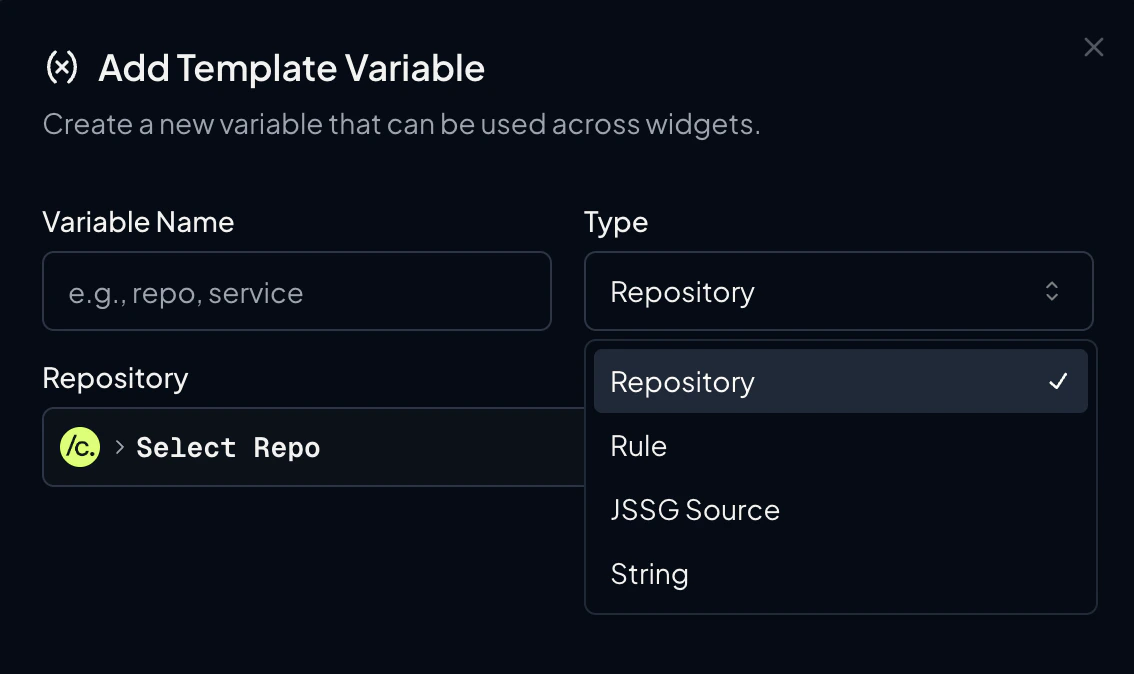
Variable Types
| Type | Description |
|---|---|
| Repository | Select one or more (up to 10) repositories. Widgets referencing this variable will query the selected repos. |
| Rule | Define an ast-grep YAML rule that can be reused across multiple widgets. |
| JSSG Source | Define a js-ast-grep code source that can be reused across multiple widgets. |
| String | A text value. Optionally define a set of allowed values to display as a dropdown selector. Useful for dimension filter values or group-by keys. |
Using Template Variables
Once created, template variables appear as selectable options in query configuration fields. When configuring a query’s repository, rule, or JSSG source, you can choose between specifying a value directly or referencing a template variable.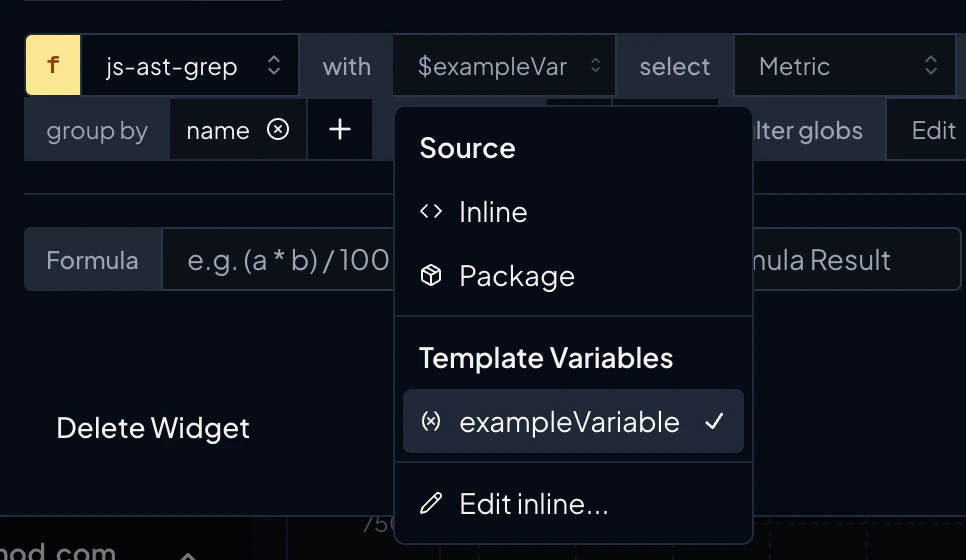
$variableName syntax.
Variables marked as Dynamic can be changed at any time from the dashboard view, and all widgets that reference them will automatically refresh with the updated values.
Next Steps
JSSG Quickstart
Build your first JavaScript ast-grep codemod.
Codemod Studio
Generate ast-grep rules with the help of AI.
Campaigns
Run codemods at scale across your repositories.
Codemod Registry
Discover and publish reusable codemods.