

Authentication Methods
Codemod supports three authentication methods for publishing:
* Verifying an organization scope is only part of setup. Some packages also require adding a Trusted Publisher entry in the UI (for example, unscoped packages or when the GitHub org doesn’t match the package scope). See Organization Scopes and Individual Packages (Manual Configuration).
Interactive Login
The simplest way to authenticate for local development. Opens a browser for OAuth authentication.When to Use
- Local development and testing
- Quick one-off publishes
- When you prefer browser-based authentication
Trusted Publishers
Trusted publishers enable passwordless publishing from GitHub Actions using OpenID Connect (OIDC). No secrets to manage or rotate.How OIDC Works
GitHub Actions can request short-lived tokens that cryptographically prove the workflow’s identity. Codemod verifies these tokens against your configured trusted publishers.
Benefits
- No secrets to manage: No API keys to create, rotate, or accidentally leak
- Cryptographically secure: Tokens are signed by GitHub and verified by Codemod
- Fine-grained control: Restrict publishing by repository, workflow, environment, or git ref
- Short-lived tokens: Tokens expire in ~5 minutes, limiting exposure
Organization Scopes
Before anyone can publish a package such as
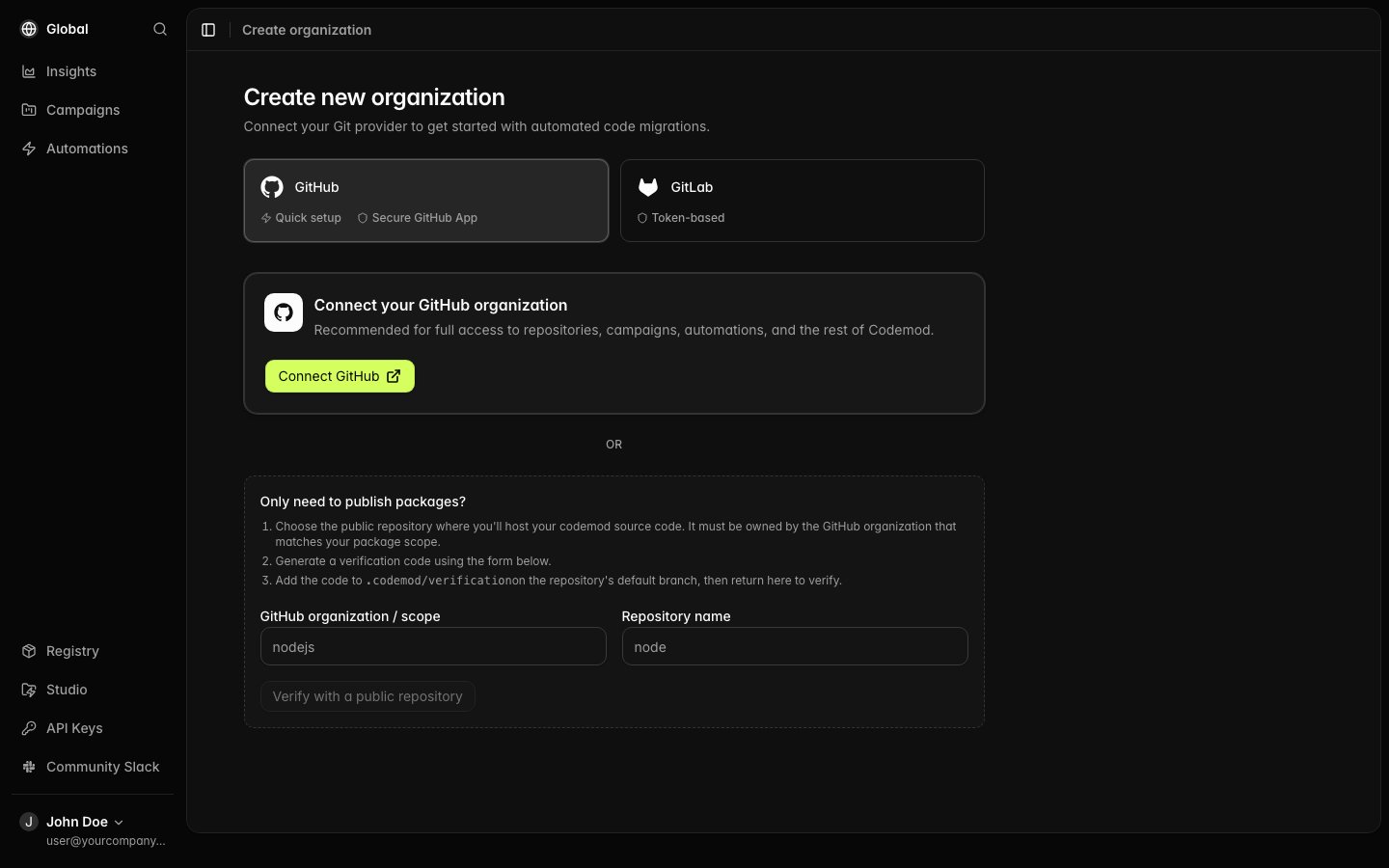
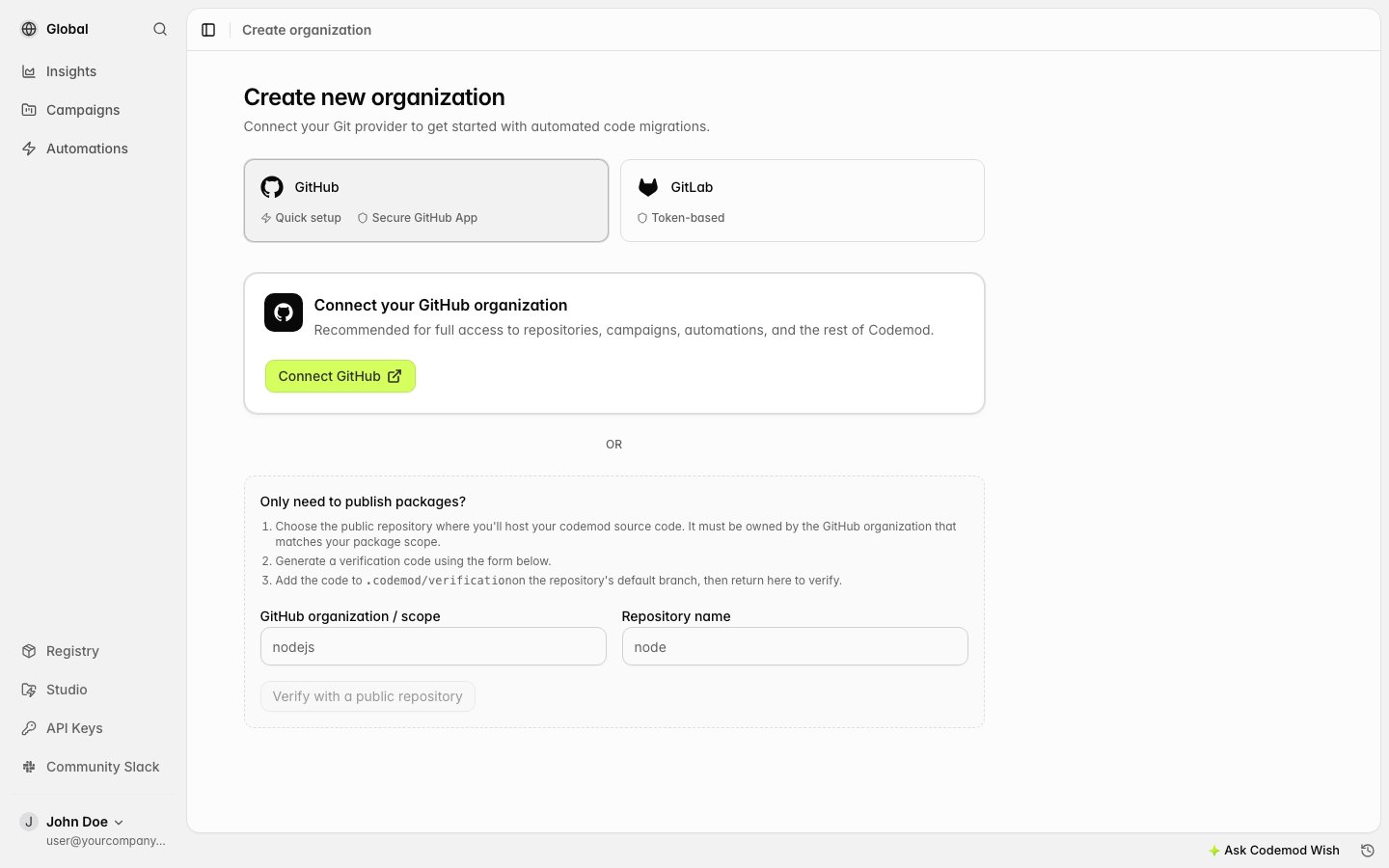
@my-org/my-codemod, Codemod must verify that the matching GitHub organization owns the @my-org scope. GitHub Actions OIDC authenticates later publishes, but it does not skip this initial verification.- Connect GitHub (recommended): Install the Codemod GitHub App for the complete platform experience, including repositories, campaigns, and automations.
- Verify a public repository: Prove ownership without granting the GitHub App access. This creates a registry-only organization for publishing packages.
Linking Your GitHub Organization
For full access to Codemod, connect the GitHub organization that matches your package scope:1
Install the Codemod GitHub App
Install the Codemod GitHub App, select your GitHub organization, and grant access to at least one repository. This requires GitHub organization admin permissions.
2
Sign in to Codemod
Go to the Codemod platform, sign in with GitHub, and select Connect GitHub on the organization creation page. Your organization will be linked after GitHub confirms the installation.
Verifying With a Public Repository
Use repository verification when you only need the Codemod Registry and do not want to install the GitHub App yet.1
Choose a public repository
Choose a public, non-fork, active repository whose GitHub owner exactly matches your package scope. For example, the repository owner must be
nodejs to claim @nodejs. You must specify the repository; Codemod does not scan the organization’s repositories.We recommend hosting your codemod source code in this same repository so it serves both as the ownership proof and the source repository.2
Request a verification code
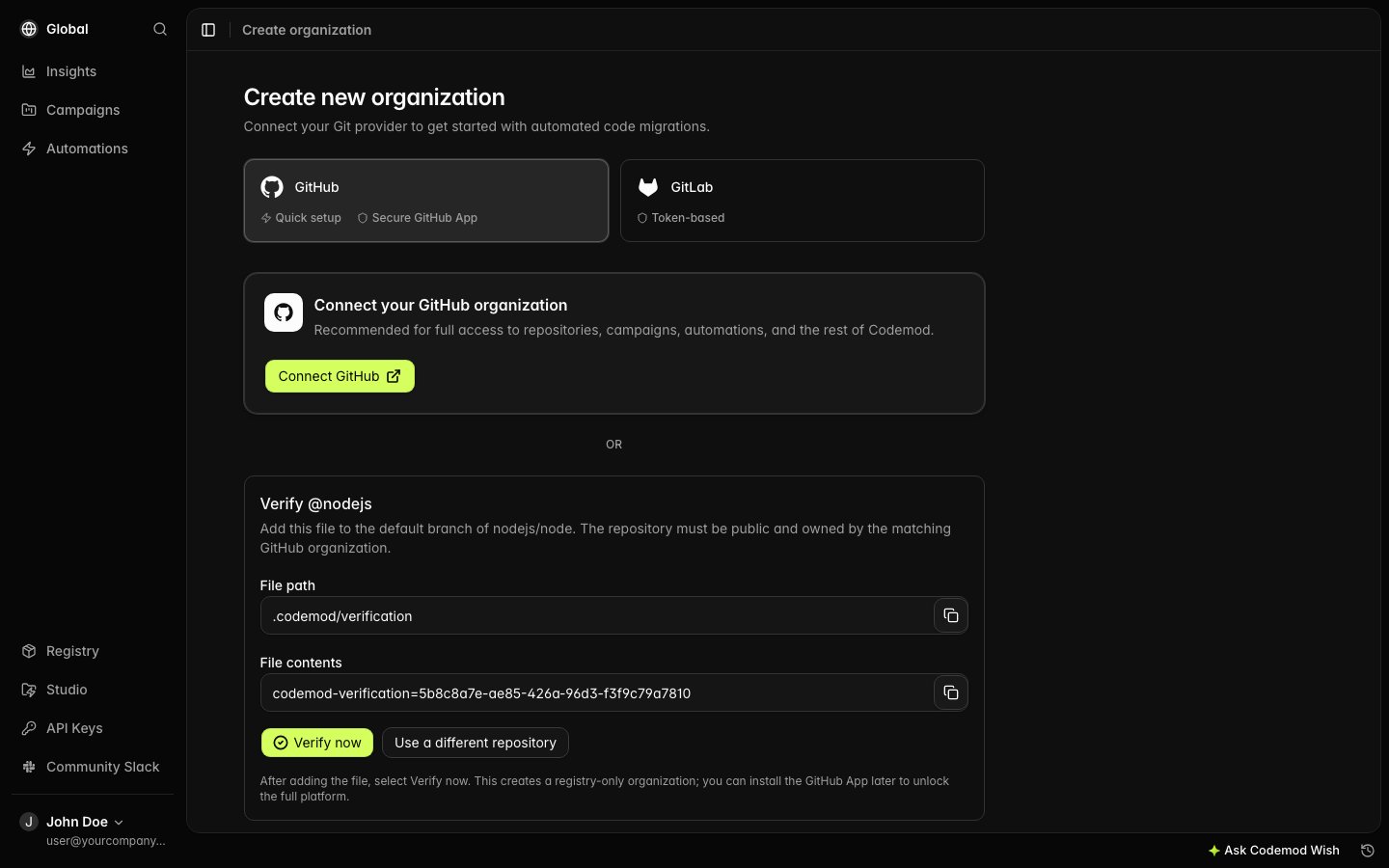
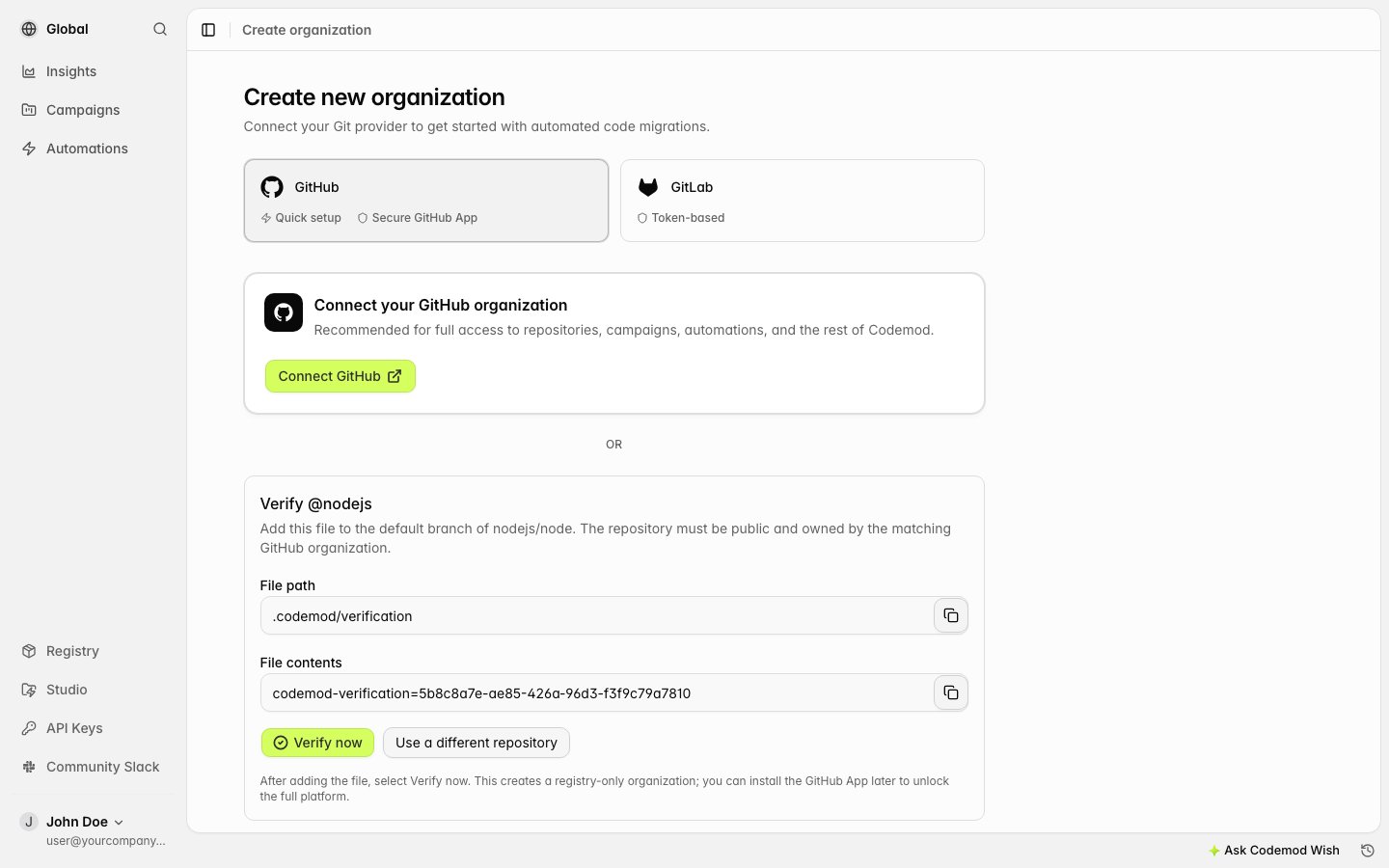
On the organization creation page, enter the GitHub organization name and repository name, then select Verify with a public repository.
3
Add the verification file
Add the displayed code to
.codemod/verification on the repository’s default branch. Commit and push the file publicly.4
Complete verification
Return to Codemod and select Verify now. Codemod checks the specified repository, creates the registry-only organization, switches to it, and refreshes the page.
Complete GitHub Actions Workflow
Here’s a complete workflow file for publishing. You can create this manually or usecodemod init to generate it automatically:
For a single codemod repository:
codemods/ directory), use tags like codemod-name@v1.0.0:
npx codemod init to generate this workflow automatically. It creates the single-codemod or monorepo format based on your project structure.
Individual Packages (Manual Configuration)
For unscoped packages or cases where the GitHub org doesn’t match the package scope, configure a trusted publisher manually:1
Configure Trusted Publisher in UI
- Go to codemod.com/api-keys
- Scroll to Trusted Publishers
- Click Add Trusted Publisher
- Select your package and enter the GitHub repository details
- (Optional) Add restrictions for extra security
2
Configure Your Workflow
Once configured, any workflow in that repository can publish to the specified package.
Optional Restrictions
Add restrictions for additional security:
Example with restrictions:
Manual OIDC Setup
If you prefer not to use the action, you can manually obtain and use the OIDC token:Troubleshooting
No trusted publisher found
No trusted publisher found
Verify your trusted publisher configuration matches:
- Repository owner (case-insensitive)
- Repository name (exact match)
- Any configured restrictions (workflow path, environment, ref pattern)
.codemod/verification remains on the specified repository’s default branch for publishes that do not use GitHub Actions OIDC.Permission denied
Permission denied
Ensure your workflow has the required permissions:
Token audience mismatch
Token audience mismatch
The OIDC token audience must be
https://codemod.com. If using a custom registry, configure GITHUB_OIDC_AUDIENCE on the server.API Keys
API keys allow non-interactive authentication, perfect for CI/CD pipelines and automation.Creating an API Key
- Go to codemod.com/api-keys
- Click Create API Key
- Give it a descriptive name (e.g., “GitHub Actions - my-repo”)
- Select the permissions (typically “Publish Packages”)
- Copy the key (it won’t be shown again)
Using API Keys
Option 1: Login with API keyGitHub Actions Example
When to Use
- CI/CD pipelines without GitHub Actions OIDC
- GitLab CI, CircleCI, Jenkins, etc.
- Automated publishing from any environment
- When you need explicit control over credentials
Comparison
* Trusted publishers can publish new packages when using a matching organization scope.
** Organization scopes must first be verified through the GitHub App or a public repository. Individual packages require adding a trusted publisher in the UI.
Best Practices
Use Trusted Publishers
For GitHub Actions, prefer trusted publishers over API keys. No secrets to leak or rotate.
Restrict Access
When using trusted publishers, add restrictions like environment protection for sensitive packages.
Rotate API Keys
If using API keys, rotate them periodically and use the minimum required permissions.
Tag Releases
Use git tags and GitHub releases to trigger publish workflows for clear version history.
Customize Dashboard Templates
If your package includes JSSG steps, it ships a default Insights dashboard. Update the dashboard template so consumers start from your recommended widgets.